How To add a listing on AHP, follow these steps:
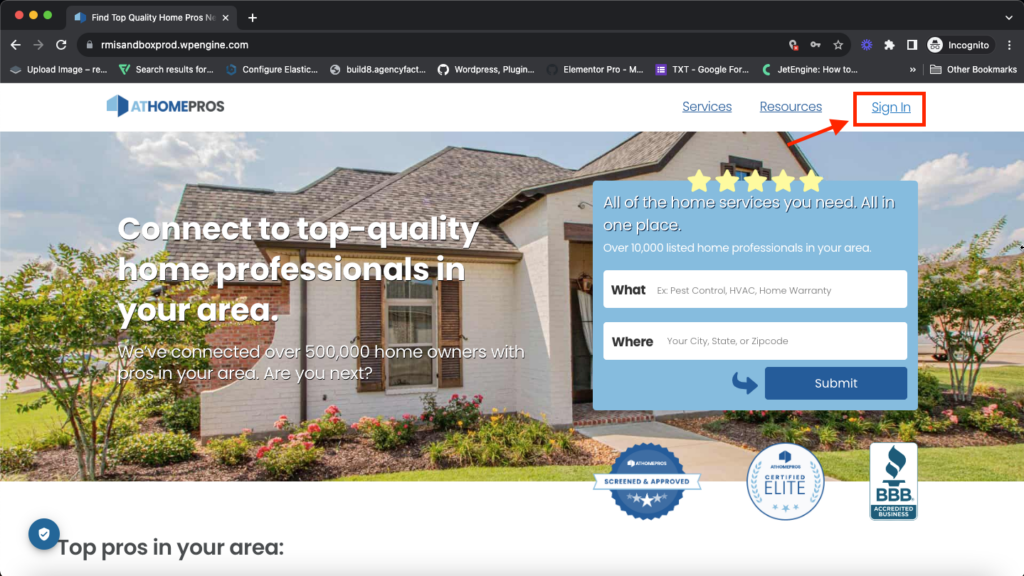
1. Login or Signup:
Once you are on the AHP website homepage. Enter your login credentials to access your user dashboard. If you haven’t registered yet, you may need to Signup first.
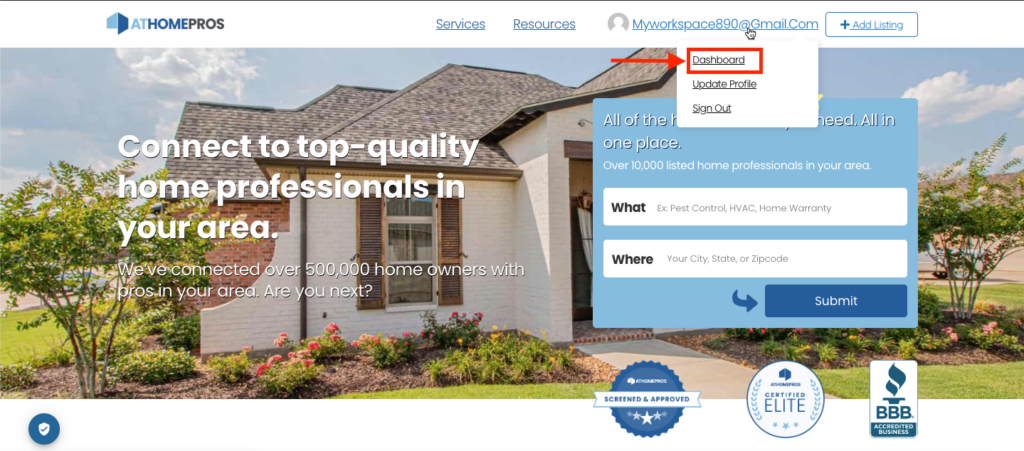
2. Access the Dashboard:
Once logged in, navigate to the user dashboard. You can usually find that in the Upper profile menu.
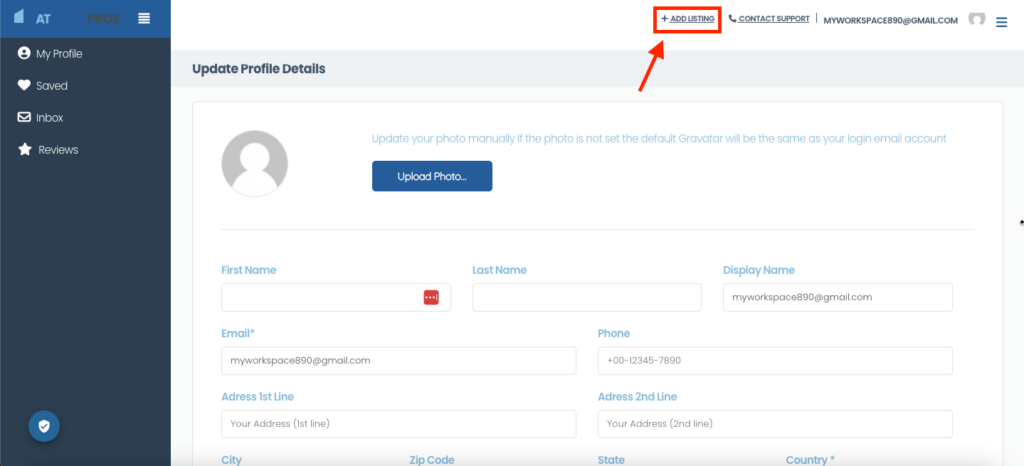
3. Add a new listing:
Look for an option or button labeled “Add New Listing” or something similar within the user dashboard. Click on it to begin the process of adding a new listing.
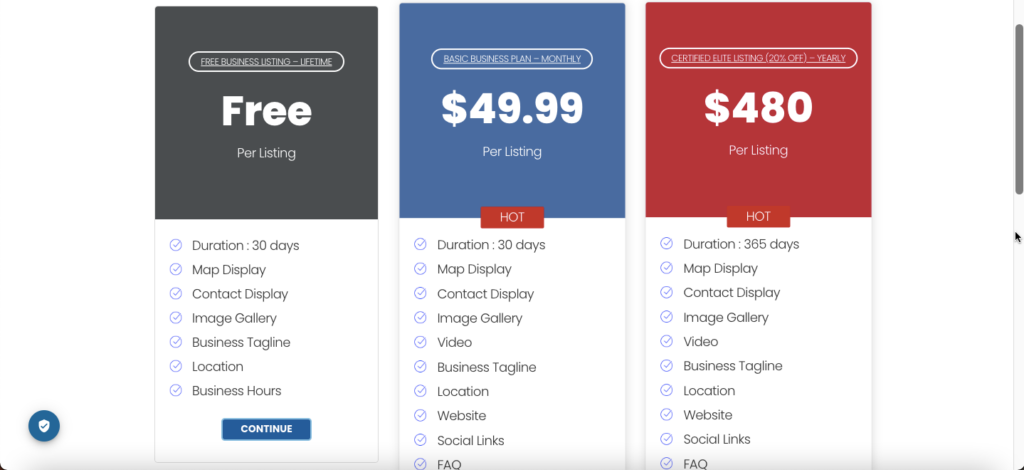
4. Select Plan & Payemnt:
Select a plan from the list and proceed to the payment checkout.
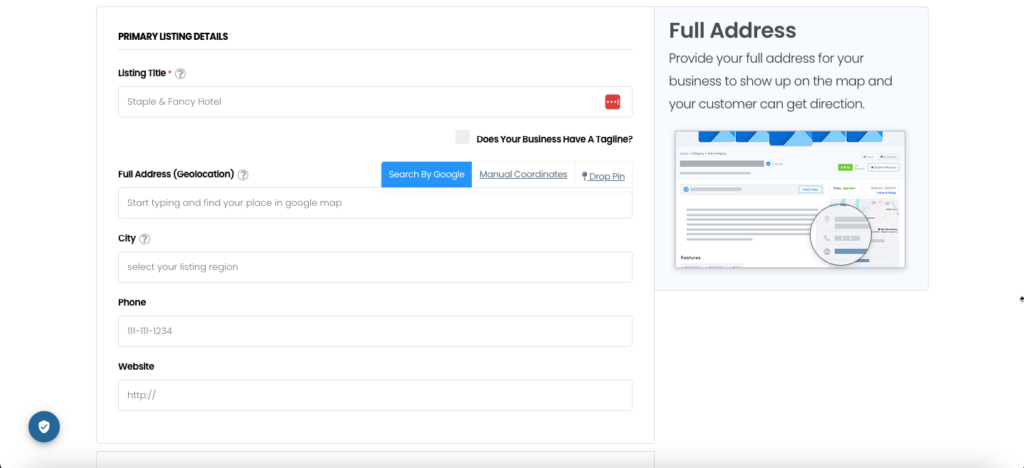
5. Enter listing details:
You will be presented with a form or a series of fields to fill out with the information about your listing. Provide accurate and comprehensive details such as the listing title, category, location, description, contact information, and any additional fields required.
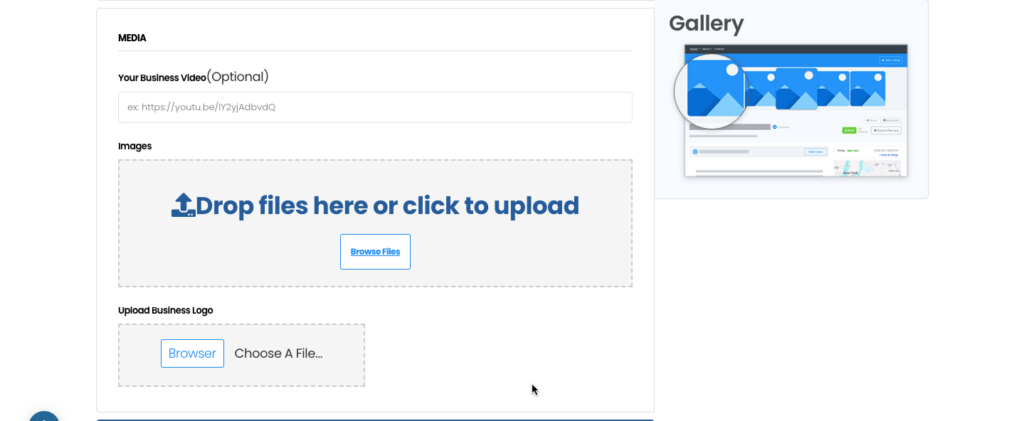
6. Upload images:
We’ve allowed you to include images in your listing, you’ll typically find an option to upload them. Click on the designated button or area and select the files from your device to add them to your listing. (Image limitation Applies)
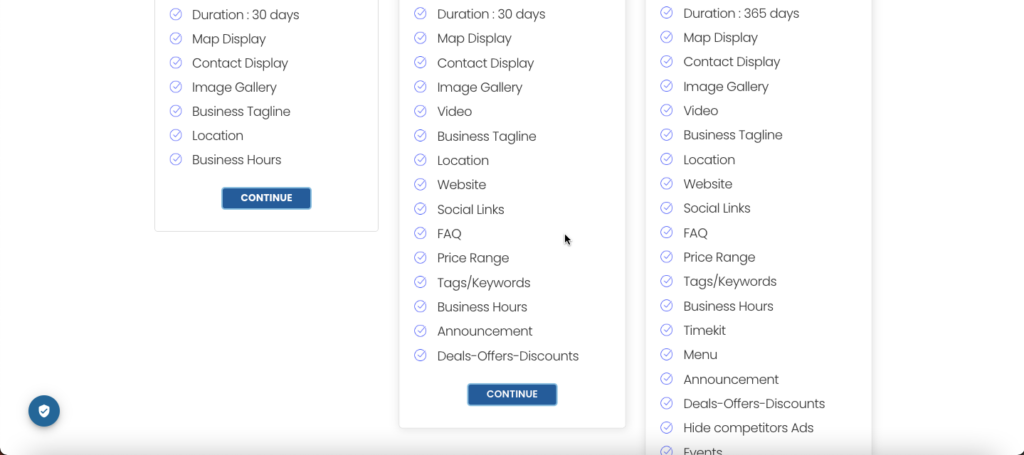
7. Set listing features:
Depending on the Plan you choose, you might have the opportunity to select specific features or amenities for your listing. Choose the appropriate options for your listing.
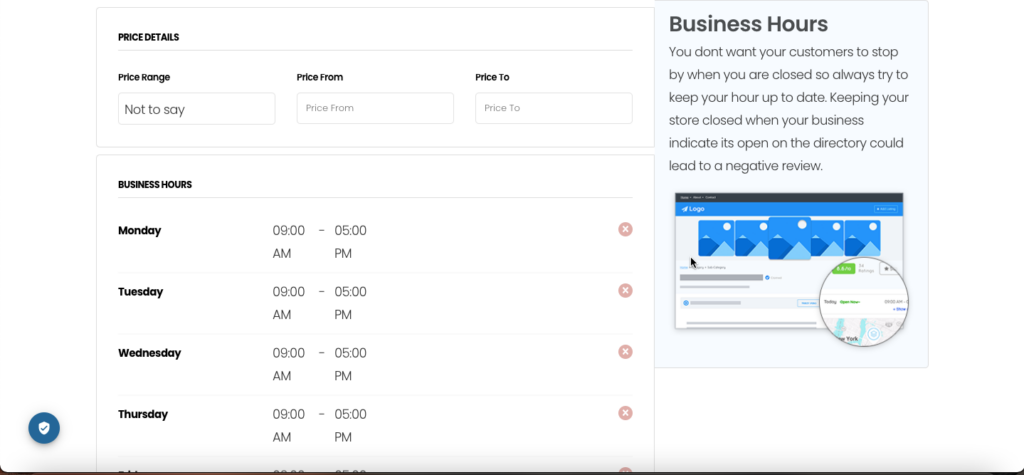
8. Configure pricing and availability:
If applicable, you may need to set the pricing and availability details for your listing. Specify the rates, booking options, and any applicable discounts or promotions.
9. Preview and review:
Before submitting your listing, reviewing all the information you’ve entered is a good idea. Check for any errors, missing details, or formatting issues. You will get a preview of your listing, allowing you to see how your listing will appear to others.
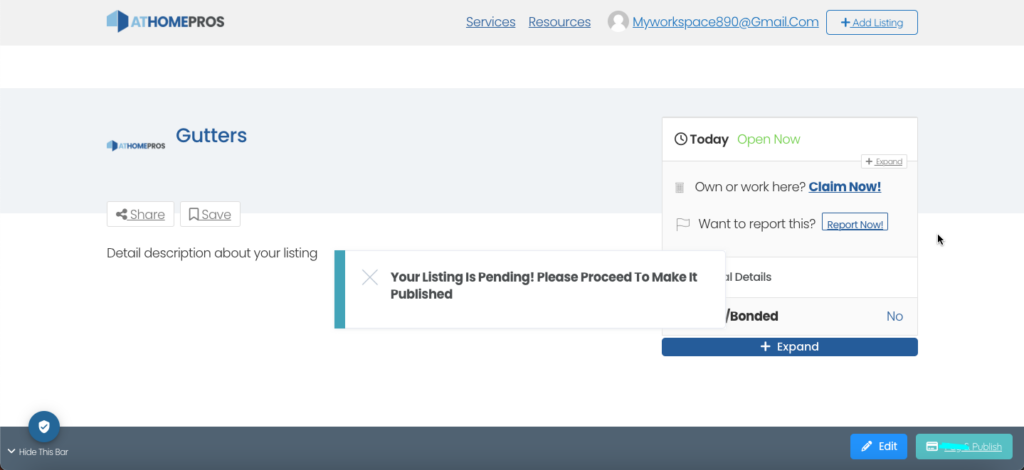
10. Submit your listing:
Once you are satisfied with the information, click the “Submit” or “Publish” button to add your listing to the website. Depending on the Listing nature, your listing may go through a moderation process before becoming visible to the public.
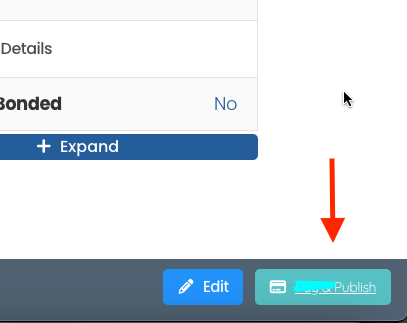
After your listing is live, periodically review and update the information as needed within the Dashboard. Ensure that the listing remains accurate, up-to-date, and in compliance with any website guidelines or policies.